Pi-hole with DoH using Cloudflared (--legacy) Installation
How to get DoH on Pi-hole using Cloudflare's DNS over HTTPS (DoH) on a Pi-hole DNS sinkhole.

Updated: June 30, 2022 - --legacy installation no longer supported.
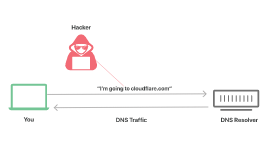
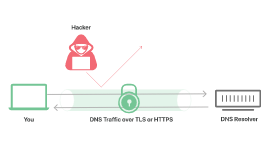
What is End-to-End DNS Encryption for HTTPS?
Project Objective
To get DNS-Over-HTTPS (DoH) on a Raspberry Pi using Cloudflare's Cloudflared configuration on a stable Pi-hole server. I picked a non-docker environment to isolate DNS, VPN and Cloudflared on the server.
If you have not setup your pi-hole for your homelab DNS sinkhole, check out the installation process on my previous blog below:
 Felix Lincuna
Find Current Architecture
To make sure you install the right assets for your stack.
dpkg --print-architecture
This example uses the Raspberry Pi's 32-bit.
armhf
Pull Cloudflared from GitHub
Install cloudflare/cloudflared buy putting commands on CLI or the architecture that matches your hardware. For cloudflared recent release assets.
wget https://github.com/cloudflare/cloudflared/releases/latest/download/cloudflared-linux-arm
sudo cp ./cloudflared-linux-arm /usr/local/bin/cloudflared
sudo chmod +x /usr/local/bin/cloudflared
Check Cloudflared Version
sudo cloudflared -v
Configuring Cloudflared the Automatic Way
This may no longer work for some use cases. STOP and try the Manual Way.
An alternate to the Manual Way, is to Install Cloudflared with Zero Trust Access Tunnel.
[post]
Make a Directory
sudo mkdir /etc/cloudflared/
Access the Configuration
sudo nano /etc/cloudflared/config.yml
Copy and Paste the Following Configuration:
proxy-dns: true
proxy-dns-port: 5053
proxy-dns-upstream:
  - https://1.1.1.1/dns-query
  - https://1.0.0.1/dns-query
  # Uncomment the following if you also want to use IPv6 for external DOH lookups
  #- https://[2606:4700:4700::1111]/dns-query
  #- https://[2606:4700:4700::1001]/dns-query
Install Cloudflared
sudo cloudflared service install --legacy
Start Service and Check
sudo systemctl start cloudflared
sudo systemctl status cloudflared
Start on Boot
Enable start on boot upon restart.
sudo systemctl enable cloudflared
Test Installation
dig @127.0.0.1 -p 5053 google.com
Should Show Similar Results:
; <<>> DiG 9.11.5-P4-5.1-Raspbian <<>> @127.0.0.1 -p 5053 google.com
; (1 server found)
;; global options: +cmd
;; Got answer:
;; ->>HEADER<<- opcode: QUERY, status: NOERROR, id: 12157
;; flags: qr rd ra; QUERY: 1, ANSWER: 1, AUTHORITY: 0, ADDITIONAL: 1

;; OPT PSEUDOSECTION:
; EDNS: version: 0, flags:; udp: 4096
; COOKIE: 22179adb227cd67b (echoed)
;; QUESTION SECTION:
;google.com.                    IN      A

;; ANSWER SECTION:
google.com.             191     IN      A       172.217.22.14

;; Query time: 0 msec
;; SERVER: 127.0.0.1#5053(127.0.0.1)
;; WHEN: Wed Dec 04 09:29:50 EET 2019
;; MSG SIZE  rcvd: 77
Pi-hole Configuration and Testing
Advanced DNS settings
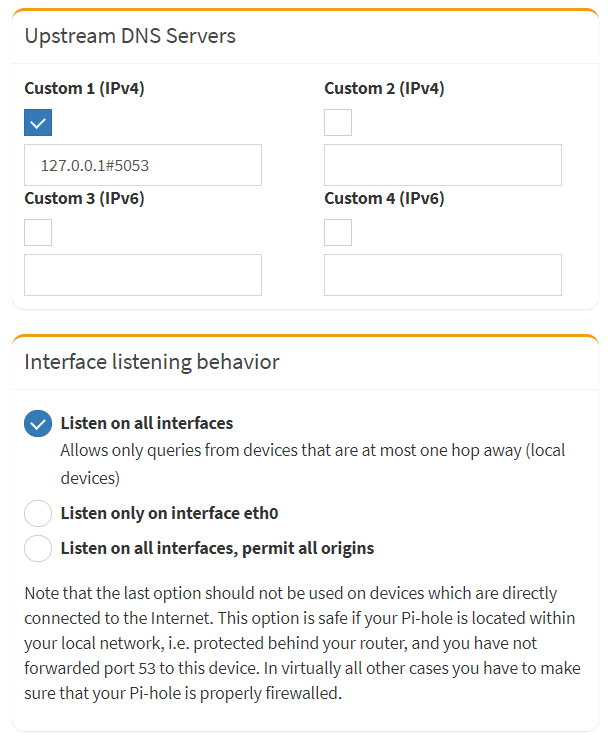
Configure Pi-hole to use the local cloudflared service by specifying the Upstream DNS Servers on Custom 1 (IPv4) to 127.0.0.1#5053.
Leave Use DNSSEC unchecked on Advanced DNS Settings (Cloudflared handles this).
Optional: Update Listen on all interfaces, if you want it to work for mobile devices as well.
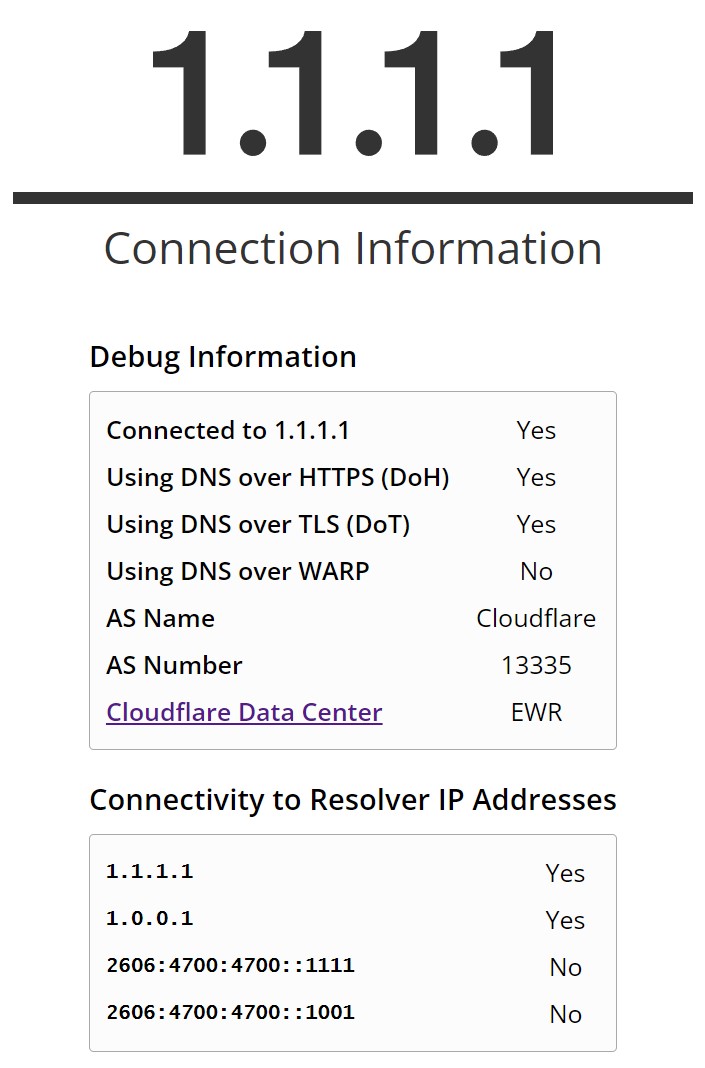
Test: DNS over HTTPS (DoH)
The goal is to achieve is a Yes on DoH. If you are unable to get a Yes, check your settings on your pi-hole and your router settings to make sure you are pointing out to the correct primary DNS for the network. To hit DoT on settings, check your router settings if you are able to enable this feature. FYI: Pi-hole does not do DoT.
https://1.1.1.1/help
Other Tests: DoT, DNSSEC and DNS-Leak
Cloudflare ESNI Checker
DNSSEC Resolver Test
DNS leak test
Check Resolver IP Addresses
sudo cloudflared proxy-dns
Post Installation for Cloudflared
Use post installation to update and remove from your system.
Update
sudo cloudflared version
sudo cloudflared update
sudo systemctl restart cloudflared
Uninstall
sudo cloudflared service uninstall
sudo systemctl daemon-reload
Can I Use Another DNS Query for My Settings?
Check out my other blog to change flavors of your DNS:
Felix Lincuna