Storage Optimization for Adobe Premiere Pro
Optimize your video editing by using media cache and scratch disks in multiple HDD/SSD/NVMe storage devices.


I recently got into Adobe Premier Pro and got curious if I was optimizing my storage allocation.
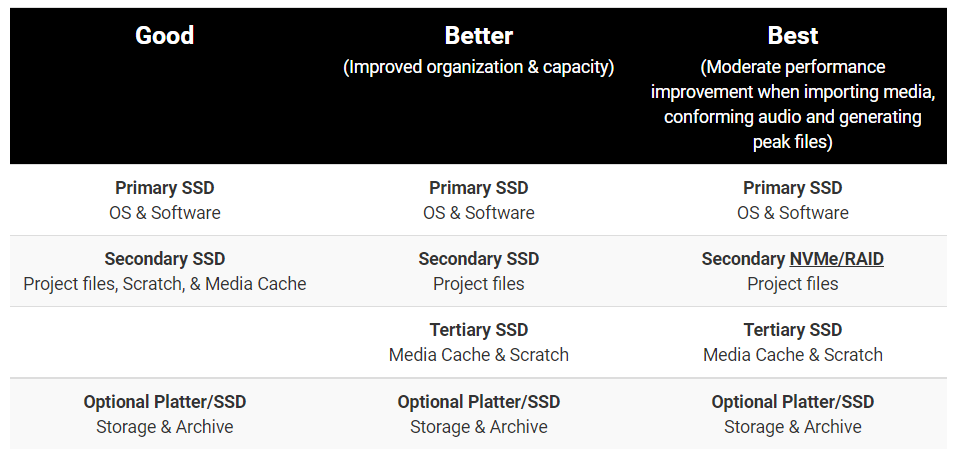
A Good Setup for Starter Editor
I ran into a good article from Puget Systems and chose the Good optimization for my stack. Since I had a spare NVMe laying around looks it fits my budget since I am just starting my video editing journey.
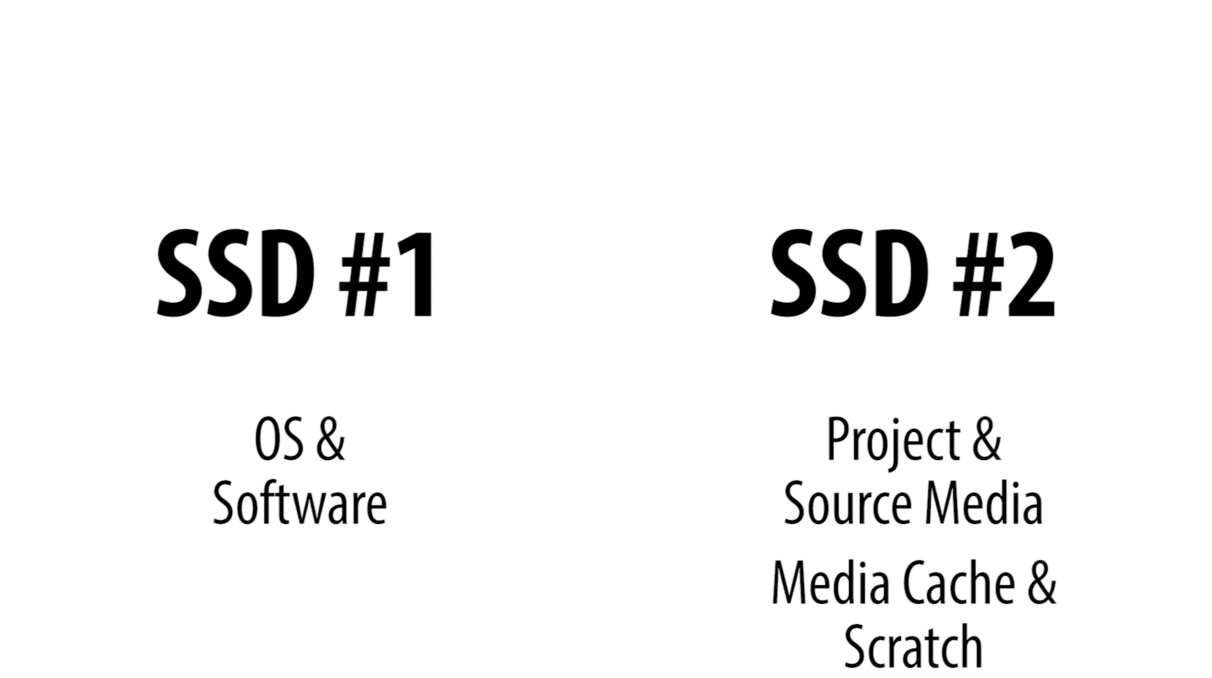
SSD #2 - Media Cache and Scratch Disks Allocation
Since I already have my OS & Software on SSD #1, my focus is on SSD #2.
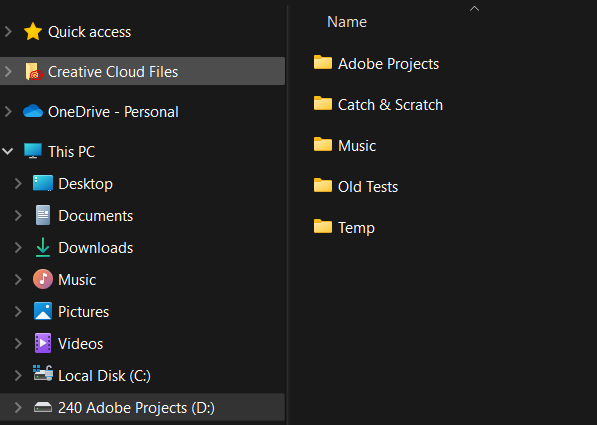
For my Project & Source Media, I created a Temp folder for files I want to use for my video editing. It is labeled Temp, since I have a separate HDD to store my Videos.
Create a Media Cache & Scratch
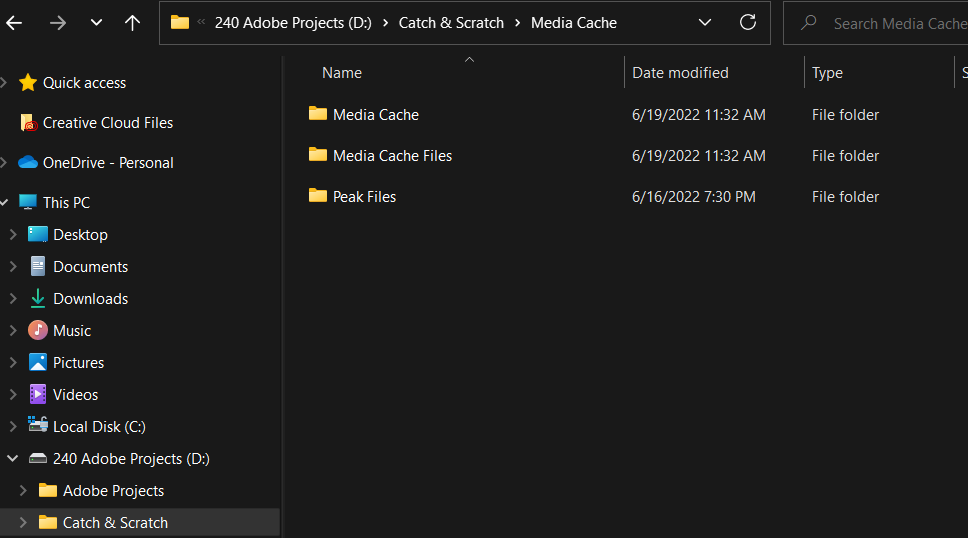
Go to your SSD #2 and create a folder Catch & Scratch and inside that folder, create a folder Media Cache. Media Cache is an ala carte feature, so you can allocate the cache on a project basis.
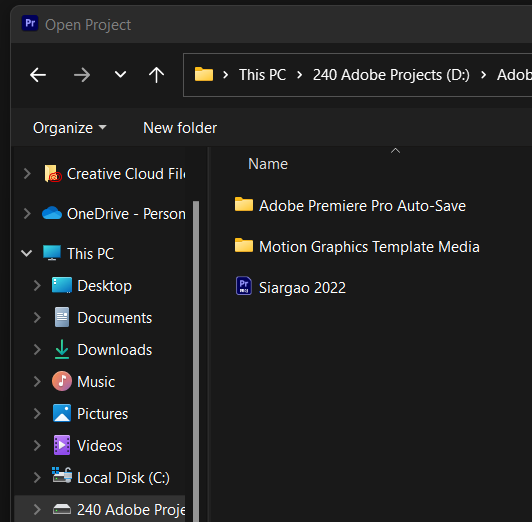
Open your project on Adobe Premier Pro so you can go select where your cache would be allocated to.
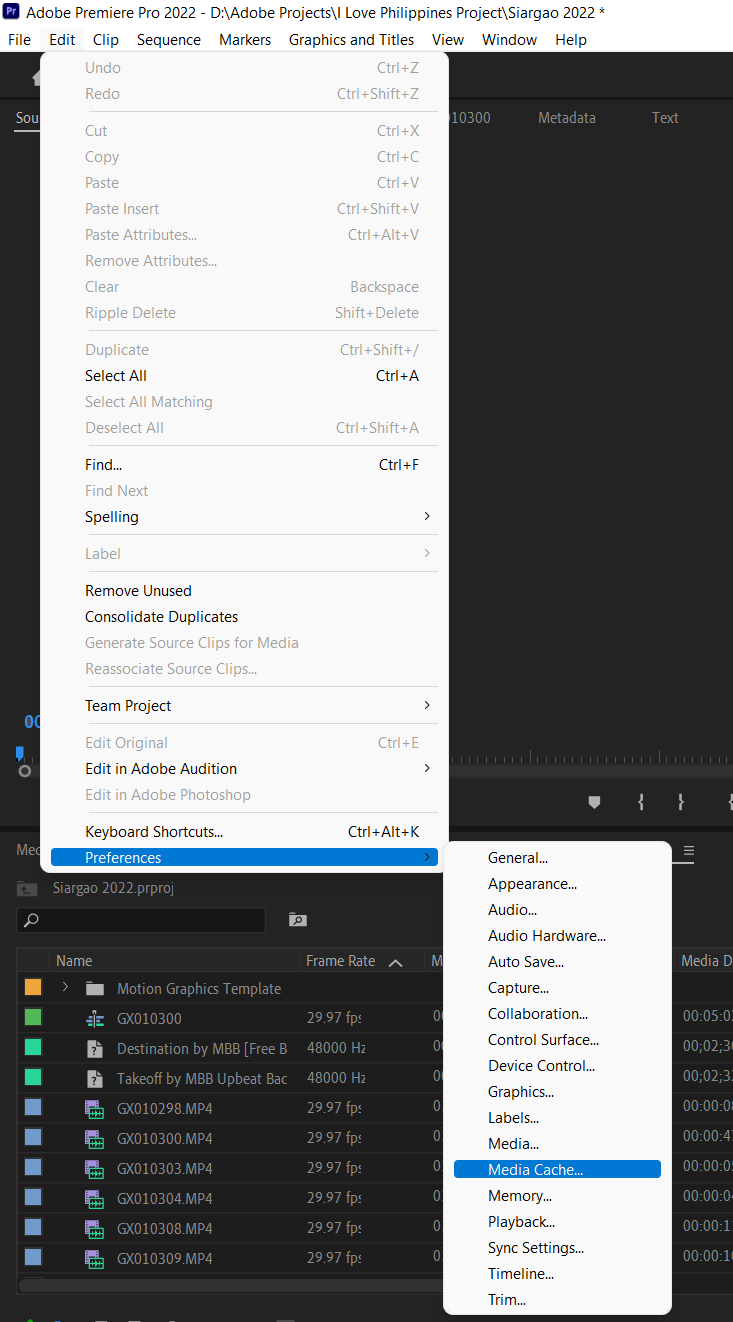
Once you open the project got to edit, preference and select media cache.
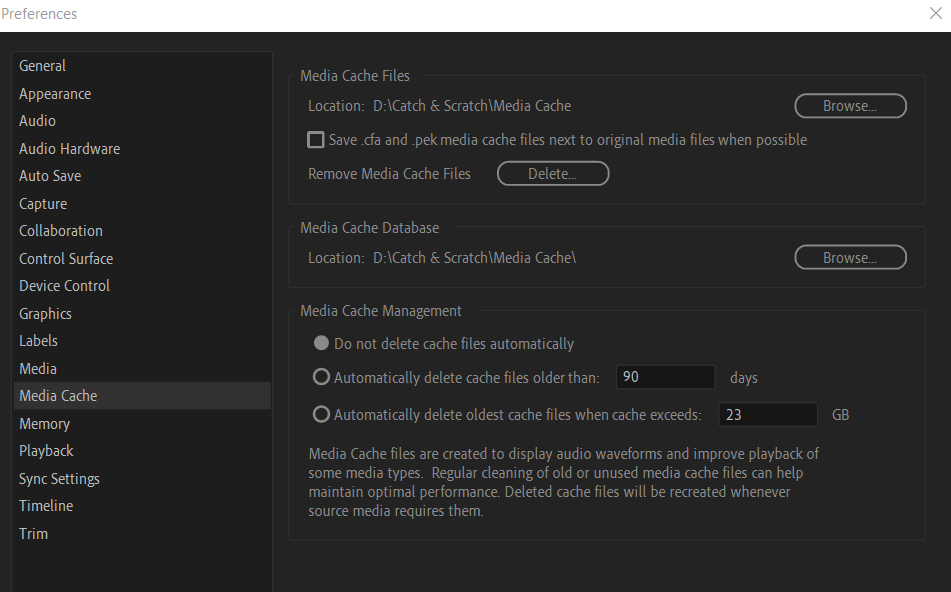
Select the folder you created for Media Cache Files and Cache Database.
Change Your Scratch Disk
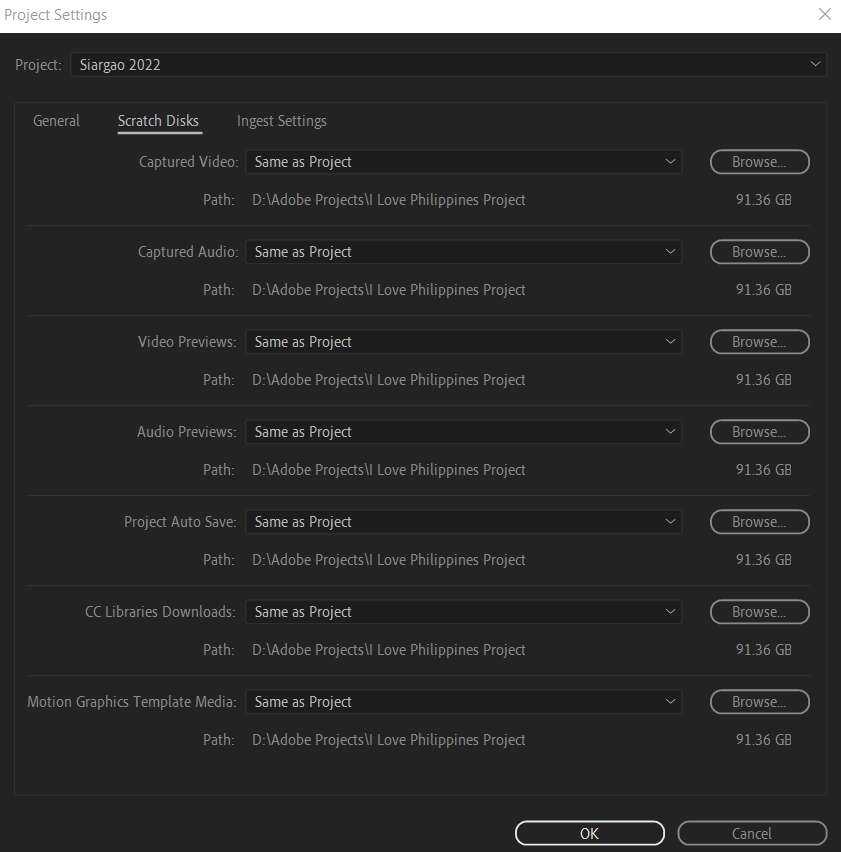
Within the same project, you can select your Scratch Disk to be allocated to a designated SSD.
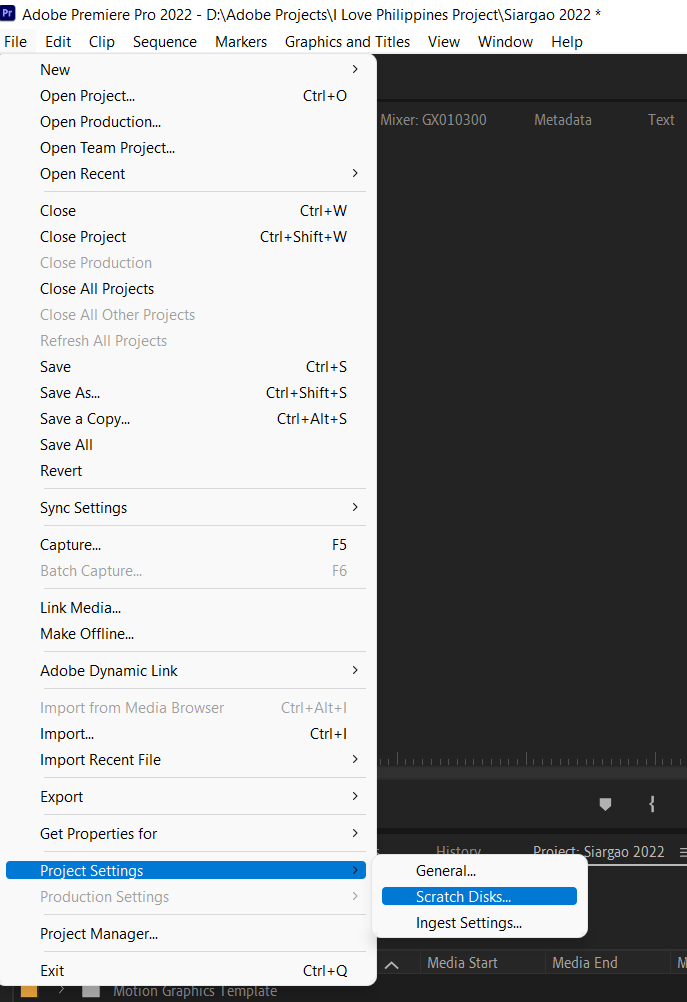
In our project, we leave it default in the folder since we only have 2 SSDs.
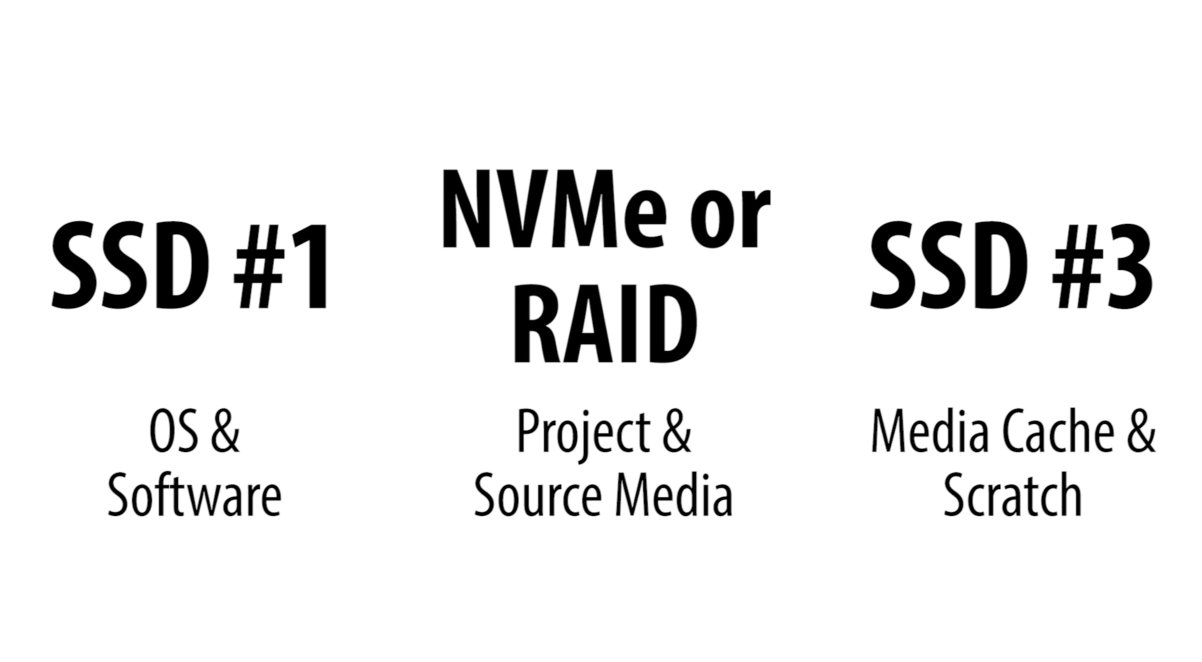
Best optimization
The best optimization scenario would be three SSD with NVMe as your project media source. I did not want to commit at the moment since I am just starting, but I plan to upgrade in the near future should my video editing needs more optimization when exporting.
Results
For now, this optimizes my computer, video editing and is ready for light editing and starting point.